IPTV problems can appear as buffering, slow loading, connection errors, a blank screen or an app that refuses to open.
Those symptoms do not always have the same cause.
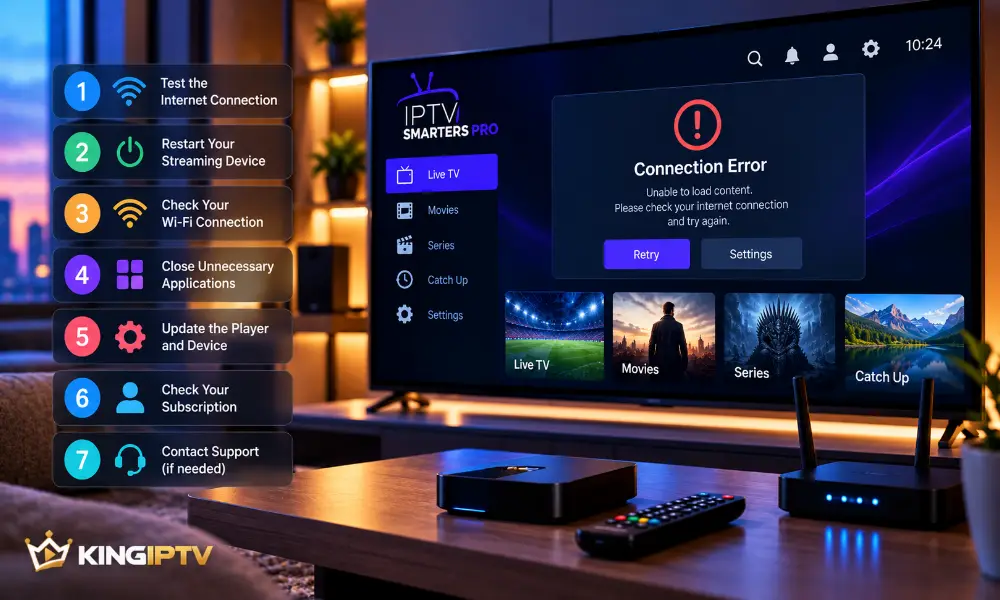
Before changing advanced settings, work through these seven checks.
1. Test the Internet Connection
Confirm that another internet service works on the same device.
If everything is slow or unavailable, the problem is probably broader than IPTV.
Restart your router and wait until it has reconnected fully.
2. Restart Your Streaming Device
Restart the television, receiver or streaming device rather than simply closing the app.
Temporary memory and software issues can disappear after a clean restart.
3. Check Your Wi-Fi
Fast broadband does not guarantee strong Wi-Fi throughout the home.
Distance, walls and interference can weaken the signal.
Move closer to the router where practical or test Ethernet.
If Ethernet fixes the problem, your wireless connection deserves attention.
4. Close Unnecessary Applications
Background apps consume memory and can sometimes consume network bandwidth.
Close applications you are not using.
Also check free storage. A nearly full device can become slow and unstable.
5. Update the Player and Device
Install legitimate updates for the streaming player and operating system.
Older software can develop compatibility problems.
Avoid unofficial modified installers.
6. Check the Subscription
If the internet and application work but the service does not load, confirm that your subscription is active and that account information is correct.
KING IPTV customers can check the FAQ section or subscription options.
7. Contact Support
If the earlier checks do not resolve the problem, contact your service provider.
Explain:
- what device you use;
- whether other internet services work;
- what error you see;
- which troubleshooting steps you completed.
Do not publish passwords or private login information.
IPTV Buffering vs a Connection Failure
Buffering means playback begins but data is not arriving consistently enough to continue smoothly.
A complete connection failure means the player cannot establish the required connection.
For buffering, investigate Wi-Fi and congestion first.
For a complete failure, confirm internet access, account status and application availability.
Why IPTV Works on One Device but Not Another
This can actually help diagnose the problem.
If one device works normally, the subscription and internet connection may still be functioning.
Compare the failing device’s:
- network connection;
- app version;
- storage;
- operating system;
- available memory.
Does More Internet Speed Always Fix IPTV?
No.
Bandwidth matters, but connection stability matters too.
A stable connection can outperform a faster connection affected by weak Wi-Fi or congestion.
Avoid Random Network Changes
Do not immediately change DNS, router security or other advanced settings because an online guide tells you to.
Changing settings without understanding them can introduce new problems.
Start with the simple checks first.
Troubleshooting Checklist
- Test the internet.
- Restart the router if necessary.
- Restart the streaming device.
- Test Wi-Fi and Ethernet.
- Close background applications.
- Update legitimate software.
- Verify the subscription.
- Contact support if necessary.
If your issue affects one particular player, read IPTV Smarters Pro Not Working?.
Final Thoughts
Most IPTV problems are easier to diagnose when you change one thing at a time.
Start with your internet and local device before assuming the service itself has failed.
For general information about the service, visit KING IPTV.