When IPTV Smarters Pro stops loading or playback fails, the subscription is not necessarily the problem.
The player depends on your internet connection, device, application and account information. A failure in any one of these areas can produce similar symptoms.
Work through these checks in order rather than changing several settings at once.
Why IPTV Smarters Pro May Stop Working
Common causes include:
- an unstable connection;
- incorrect account information;
- an expired subscription;
- outdated software;
- corrupted temporary app data;
- limited device resources.
The first task is identifying which part of the setup is failing.
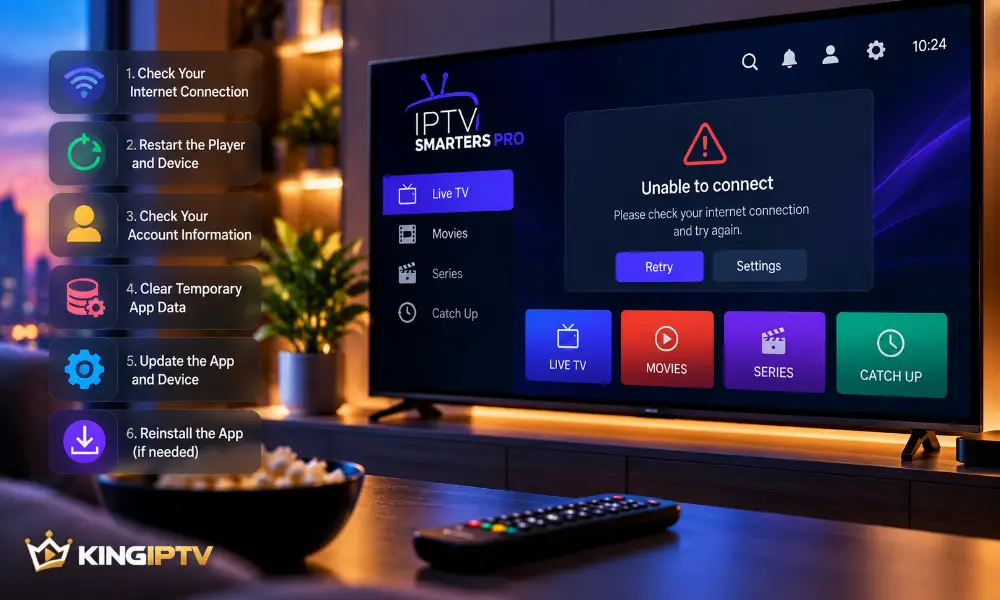
1. Check Your Internet Connection
Open another internet-based app or website on the same device.
If that is also unavailable or unusually slow, troubleshoot the connection first.
Restart the router when necessary and allow it to reconnect fully.
If you use Wi-Fi, testing Ethernet can help identify wireless problems.
2. Restart the Player and Device
Completely close the application.
Open it again and test playback.
If the problem remains, restart the entire device.
A restart clears temporary processes and can resolve minor memory or software issues without changing your configuration.
3. Check Your Account Information
If the application opens but cannot access the service, verify the information supplied with your subscription.
Even a small typing error can prevent authentication.
Also confirm that the subscription is still active.
Never post passwords or private account information publicly when asking for assistance.
KING IPTV customers can check common account questions in the FAQ section.
4. Clear Temporary App Data
Temporary application files can occasionally become corrupted.
On devices that provide the option, clearing the application’s cache can resolve loading problems.
Be careful with Clear Data or similar options.
Deleting all application data may also remove saved configuration and require you to set the player up again.
5. Update the App and Device
Check whether legitimate updates are available for the player and operating system.
Compatibility can change as operating systems evolve.
Install updates from trusted sources and restart the device afterwards.
6. Reinstall as a Final App-Level Check
If your connection works, the account is active and ordinary restarts have failed, a clean reinstall may help.
Make sure you have the information required to configure the player again before removing it.
Avoid modified installers from unknown websites.
Common IPTV Player Errors
Login or Authentication Error
Verify account details and subscription status.
Reinstalling the application will not fix incorrect credentials.
Connection Error
Check whether other internet services work.
If the whole device is offline, concentrate on the network first.
Playback Error
Restart the application and test another item within your service.
If the interface works normally but playback consistently fails, further service-specific troubleshooting may be required.
App Freezes or Closes
Restart the device and check available storage.
Closing unnecessary background applications can also help on devices with limited memory.
Is It the App, Network or Service?
You can often narrow the problem down with three simple tests.
If several internet apps fail, suspect the network.
If only one application crashes, investigate that application.
If the player works but the account cannot access the service, verify the subscription.
For problems affecting IPTV generally rather than one player, use our complete IPTV troubleshooting guide.
How to Prevent Future Problems
Keep your player and device software current.
Maintain enough free storage and avoid installing unnecessary applications from unknown sources.
Keep your subscription information somewhere private so you can recover the setup if the application needs to be reinstalled.
When to Contact Support
Contact your provider once you have established that:
- the internet works;
- the device has been restarted;
- the app is current;
- the account details are correct;
- the subscription is active.
KING IPTV customers can use the information available through KING IPTV or the FAQ section.
Final Thoughts
When IPTV Smarters Pro is not working, start with the simplest causes.
Check the connection, restart the device, verify the account and update the software before making advanced changes.
For broader problems involving buffering or connectivity, continue with our IPTV not working guide.